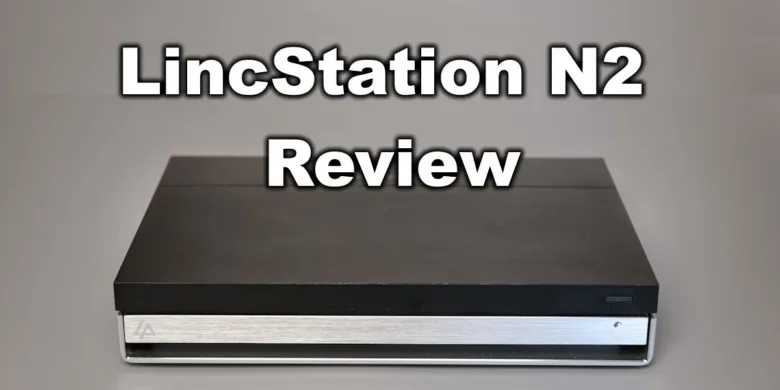
I have tried a couple of different NAS and MiniPC units lately, and this time I will share some details about the LincStation N2 NAS, the latest offering from LincPlus in terms of a complete SSD NAS unit.
This NAS is mostly targeted for people that are looking for a compact, silent and fast NAS unit which also comes out of the box with a license for Unraid, so let’s check it out!
There are a lot of performance testing articles available, so in this article we will look closer on the hardware side and how the LincStation N2 is built.
LincStation N2 Shipping and Packaging
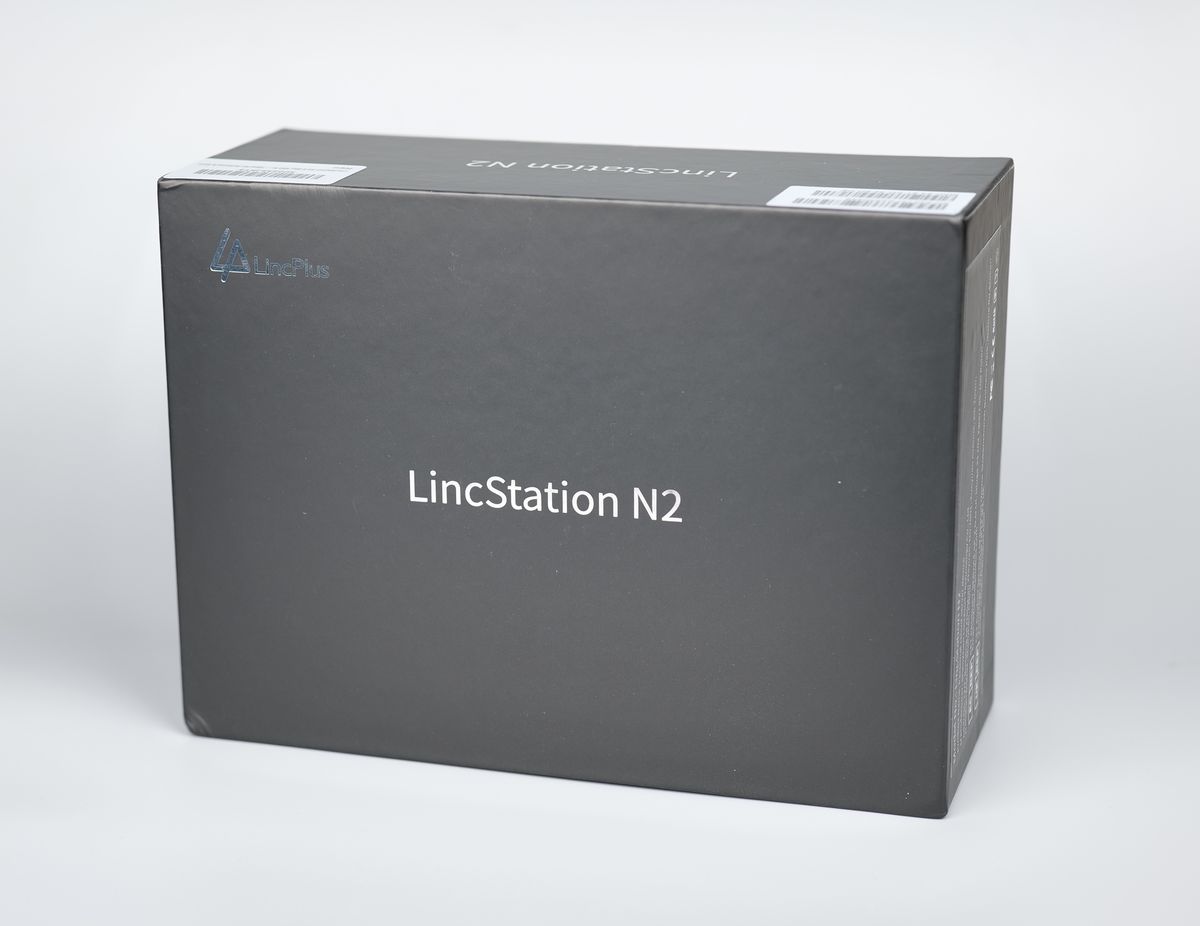
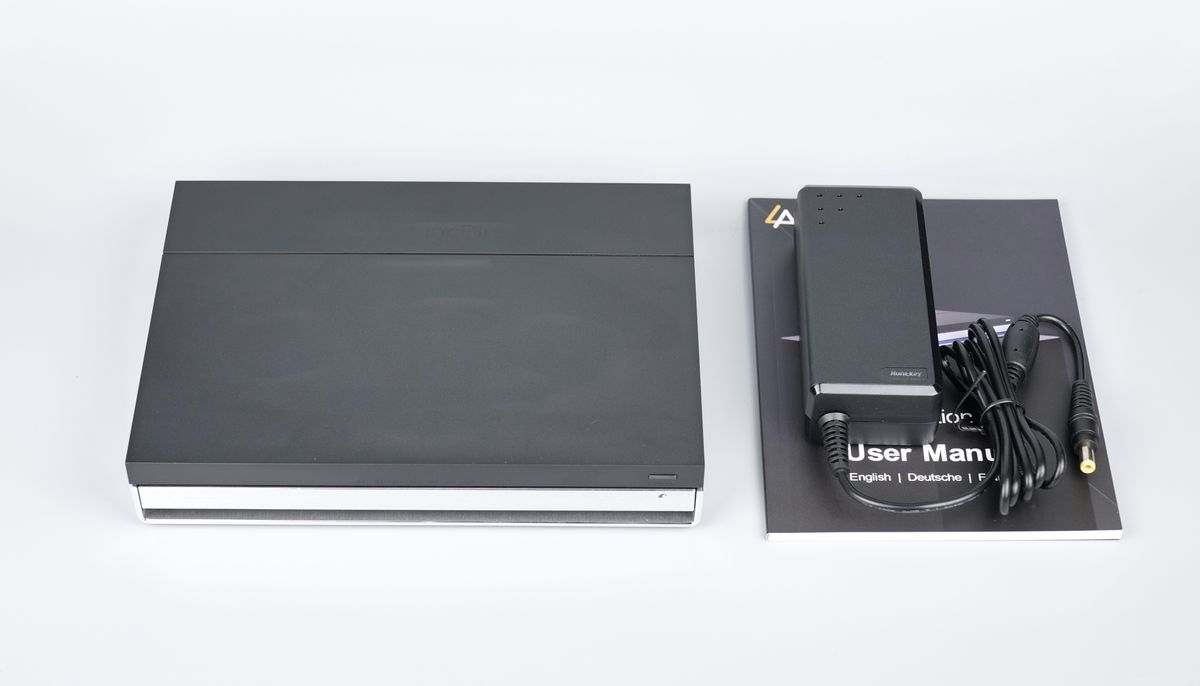
The LincStation N2 comes in a simple black box, and it includes the N2 NAS unit, screws for attaching the 2.5-inch drives, a power adapter, user manual and the Unraid license. Nothing special or fancy, just what you need to get started.
LincStation N2 Specifications
| Category | Specification |
|---|---|
| CPU | Intel Alder Lake-N N100, 4 cores, 4 threads, up to 3.4 GHz, TDP 6W |
| OS | unRAID OS |
| Memory | On-board LPDDR5, 16GB |
| Storage 1 | 128GB eMMC |
| Storage 2 | 2-bay, SATA3.0 port, supports 2.5-inch HDD (within 9.5mm thickness) |
| Storage 3 | 4-bay, M.2 port, supports M.2 2280 SSD, NVMe protocol |
| USB | 1 x USB Type-C (Full function, 10G), 1 x USB3.2 Gen2 Type-A, 2 x USB2.0 Type-A |
| HDMI | 1 x HDMI 2.0 |
| DC Port | Yes, φ5.5*2.5mm |
| Audio Port | 3.5mm audio output |
| Button | 1 x Power button |
| RJ45 | 1 x RJ45 (10 Gigabit Ethernet Controller) |
| LED | Light strip |
| Charger | 12V 5A, DC |
| Dimensions | 210 x 152 x 39.8 mm |
| Weight | 800g |
LincStation N2 Design and Hardware
I really like the LincStation N2 design, which is a very compact “box” with matte black plastic on the top side of the unit and a LincPlus logo. In the image below, you can see it pretty clearly, but when the unit is used in its intended orientation (horizontally) you can barely see it.
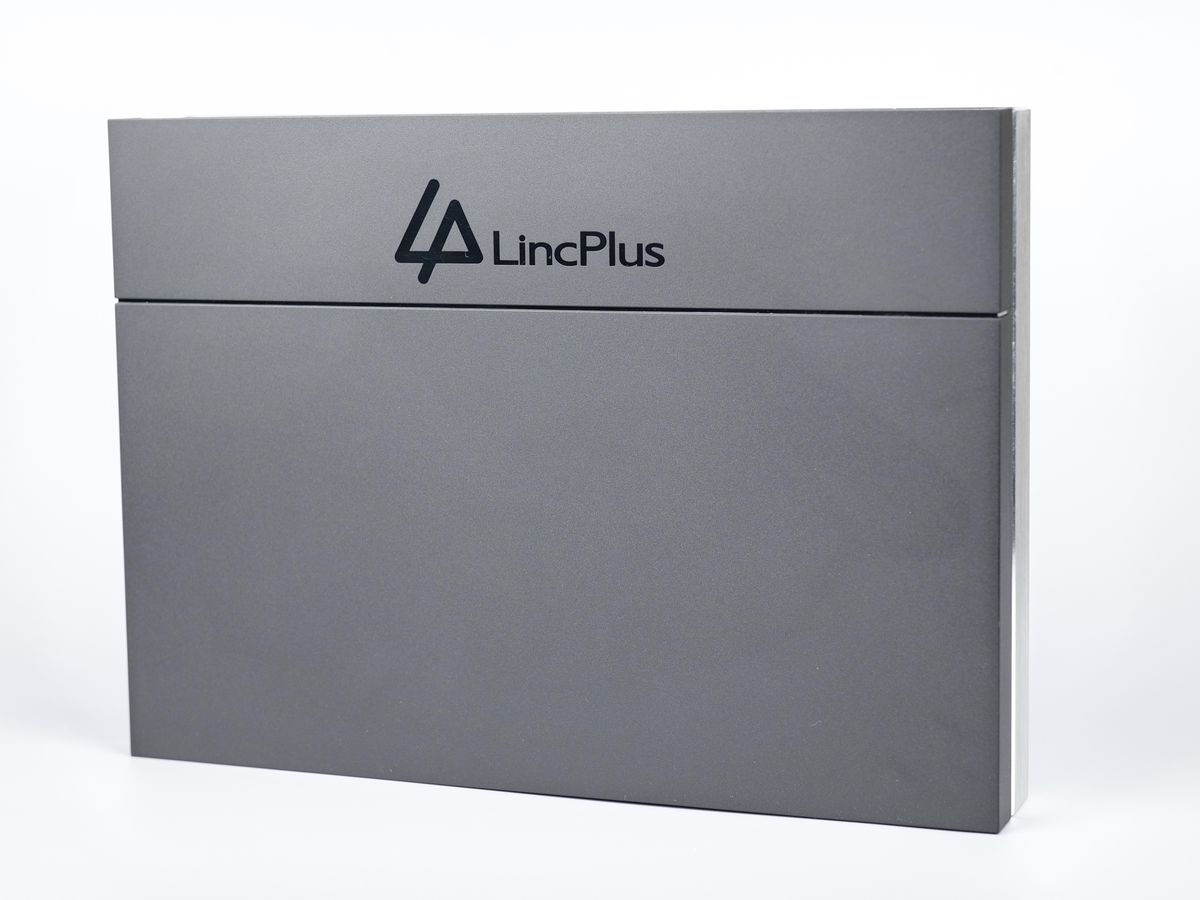
The bottom section of the N2 is made from brushed aluminum, which makes the unit look and feel very premium, while also assisting with keeping the unit cool.
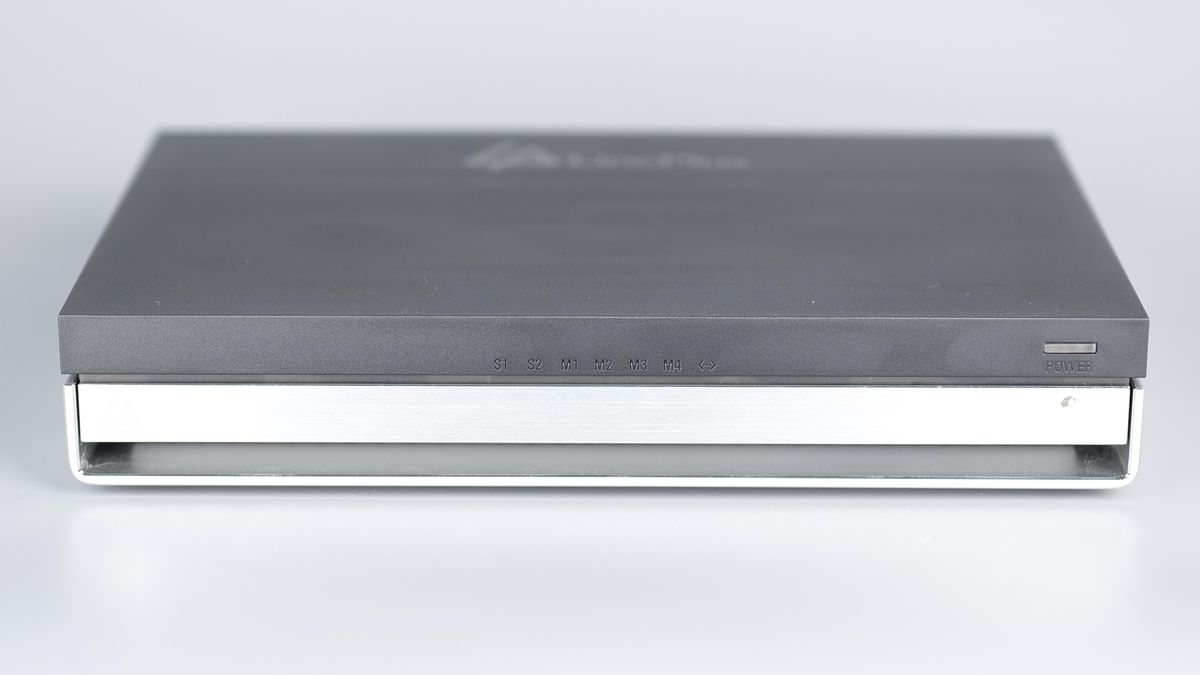
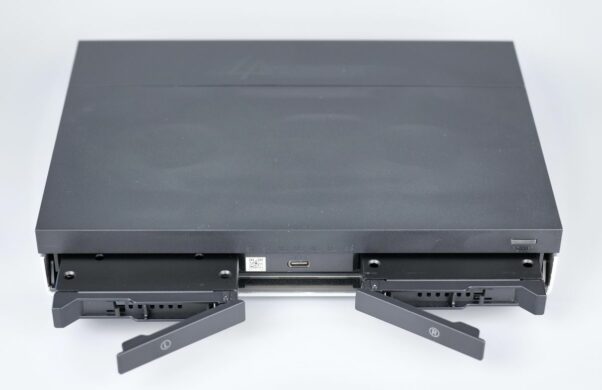
The front side has the power button located in the top right side of the unit, and if you look closely, you can also see the aluminum front plate which is magnetically attached and can be moved downwards to expose the two 2.5-inch SATA drive bays, and the Type-C USB port located between them where you can use a USB-C Cable to attach an additional external drive if you wish..
I partially like the design as it makes everything look cleaner, but on the other side, a USB C cable cannot be used without keeping the front cover lowered.
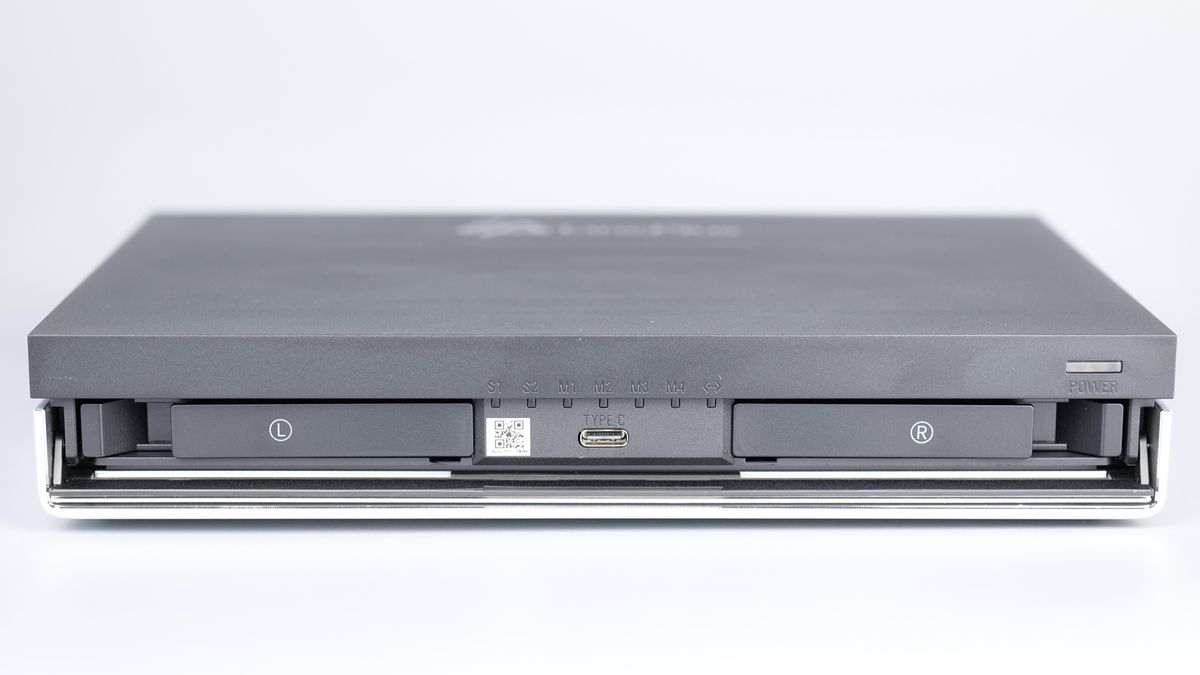
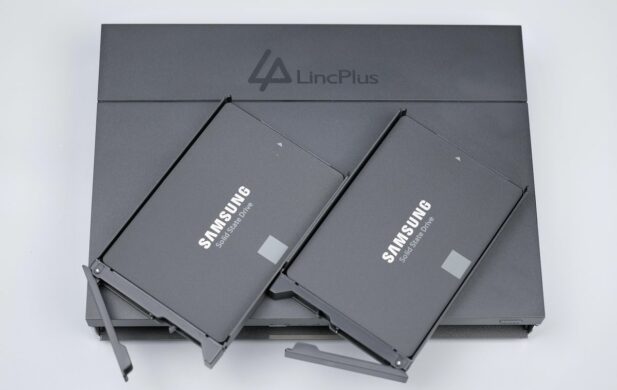
I decided to install 2x Samsung 860 SSDs I had laying around, but I also tried to use 2x 2.5 inch HDDs which worked just as well. There’s nothing stopping you from using regular 2.5-inch SATA hard drives if you wish, which might be an attractive feature if you want to keep the cost low, and you already have a few spare drives around.
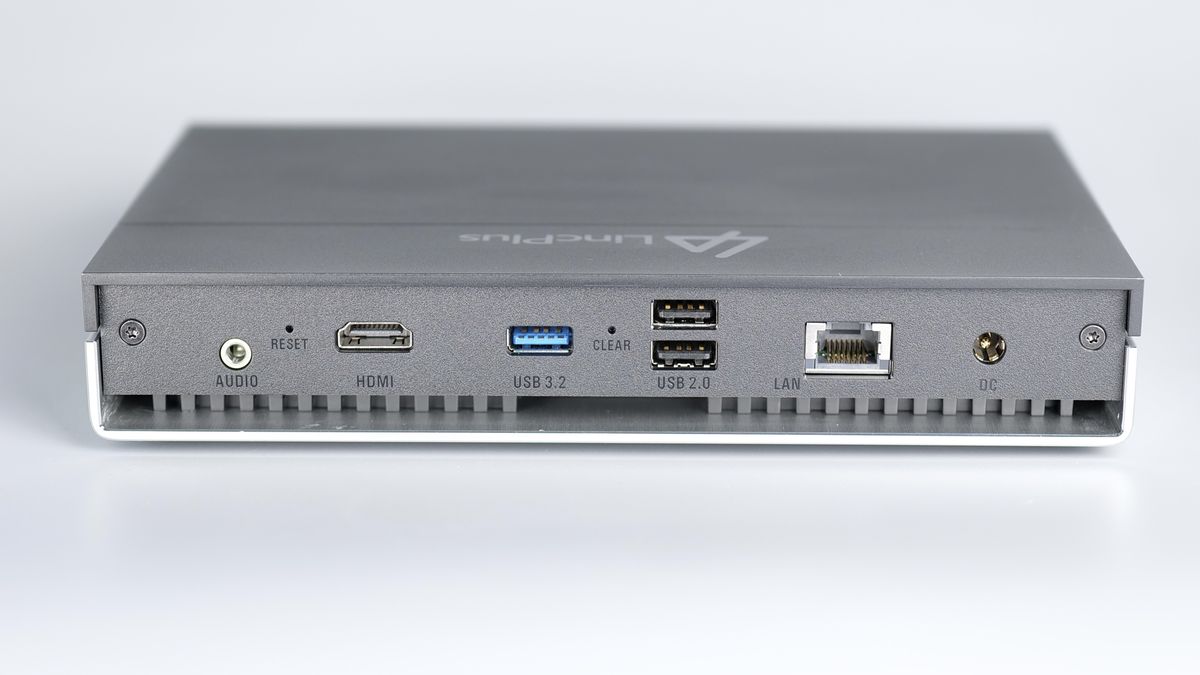
The back side of the unit has a few different ports:
- 3.5 mm jack for audio output
- Reset button
- HDMI 2.0 port
- USB 3.2 port
- Clear button
- Two USB 2.0 ports
- 10 Gbps Ethernet Port
- DC power jack
The bottom side of the unit has a pair of rubber feet located on the sides to keep the unit slightly higher and ensure there’s enough space for the intake fan located in the middle of the unit, between the two aluminum covers that hide the NVME slots.
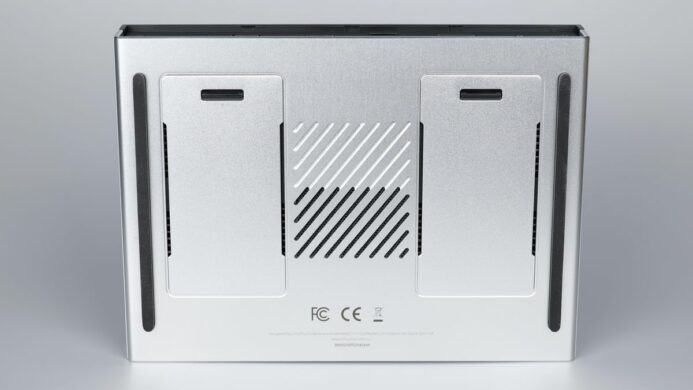
Talking about the NVME slots, there are 4 bays available to populate with PCIe M.2 2280 SSDs that can accept up to 4x8TB drives, which you can install without any tools.
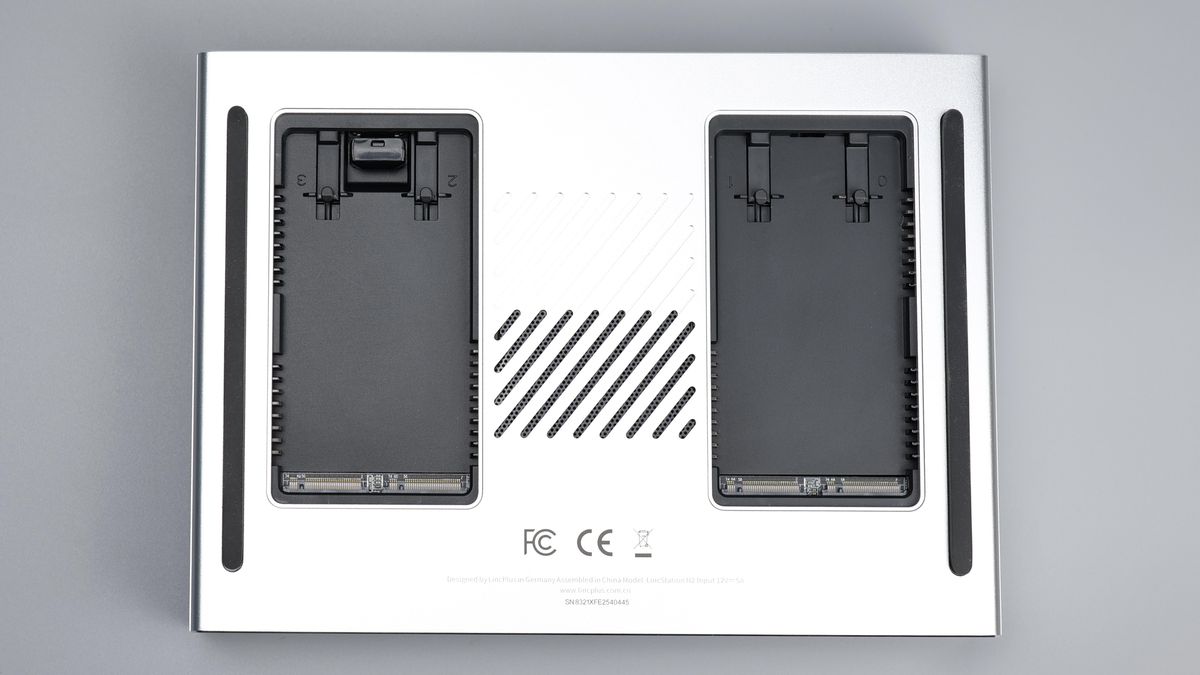
This brings the advantage to easily install the NVME SSDs, but one of the downsides is not being able to use shorter SSD units. Maybe you can with some hacks or 3D printed brackets, but I would have liked to see some screw points to make it compatible with shorter drives too.
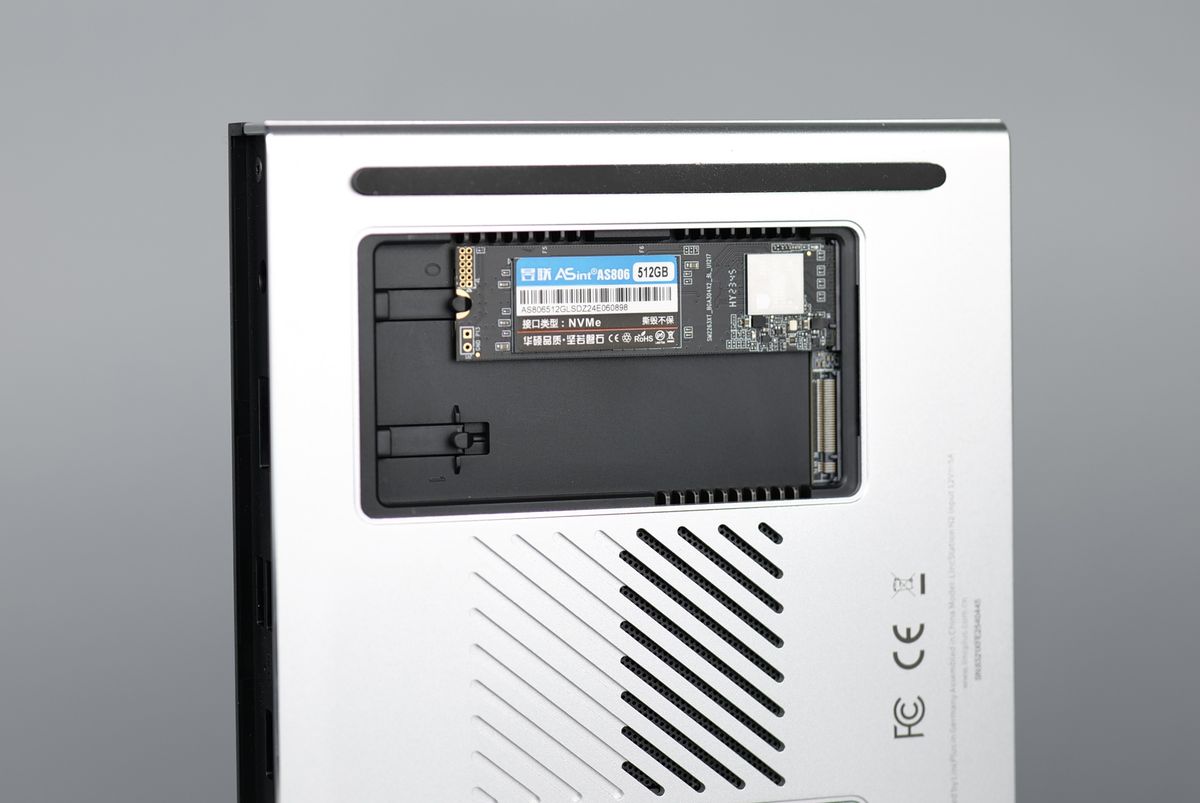
The aluminum covers also have a thermal pad pre-applied to help transfer some of the heat away from the drives and keep them cool. This is great to see, but I would have liked to see four different plastic tabs for them, so I can just remove the protective sticker individually.
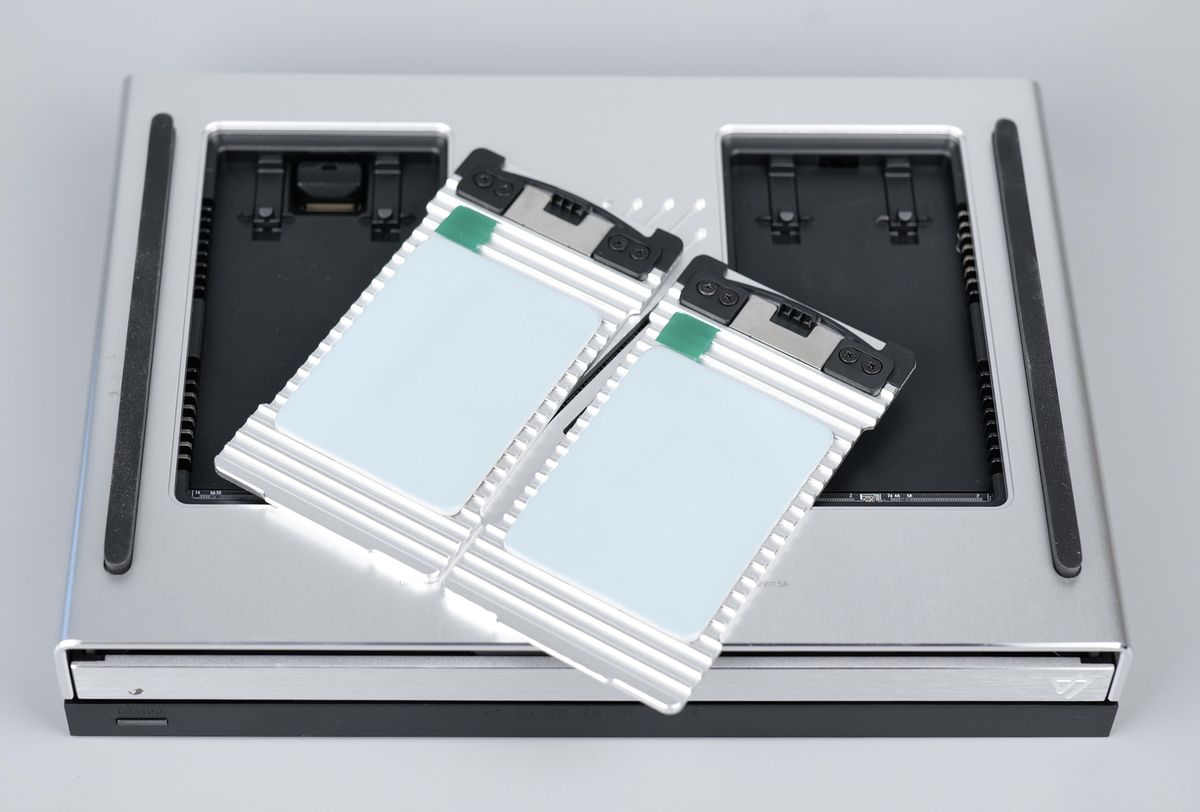
For example, if I want to just use one of the two SSD slots, I need to remove the entire sticker, which might contribute to the degradation of the thermal transfer pad. If I decide to add a secondary SSD later, I might find it a bit dusty. Of course, not a big problem, which can be easily solved with a simple cutter.
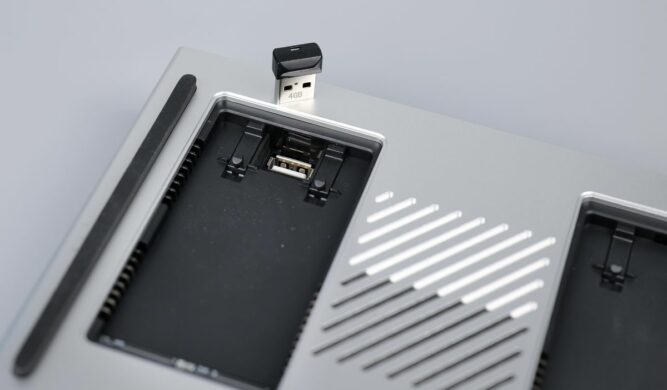
Looking closely, you can also find an additional USB 2.0 port, with a low-profile 4GB USB drive. This one is used for the Unraid installation. I was initially expecting for Unraid to come pre-installed on the 128 GB ROM the unit has, but I guess having it on the USB drive gives you a bit more flexibility.
Great low-power hardware configuration
The LincStation N2 has a great hardware configuration based around the Intel N100 which is a low-power CPU, excellent for a low power NAS. The N2 has 16GB of RAM which should be plenty considering the N100 is not the most powerful CPU out there, and you might reach a bottleneck when it comes to processing power before you reach the memory limits.
The 10 Gbps network port is also important, especially considering that the N2 is meant to be used almost exclusively with SSDs which can easily saturate a 1Gbps connection as you might find in older NAS units.
Board and Cooling Setup
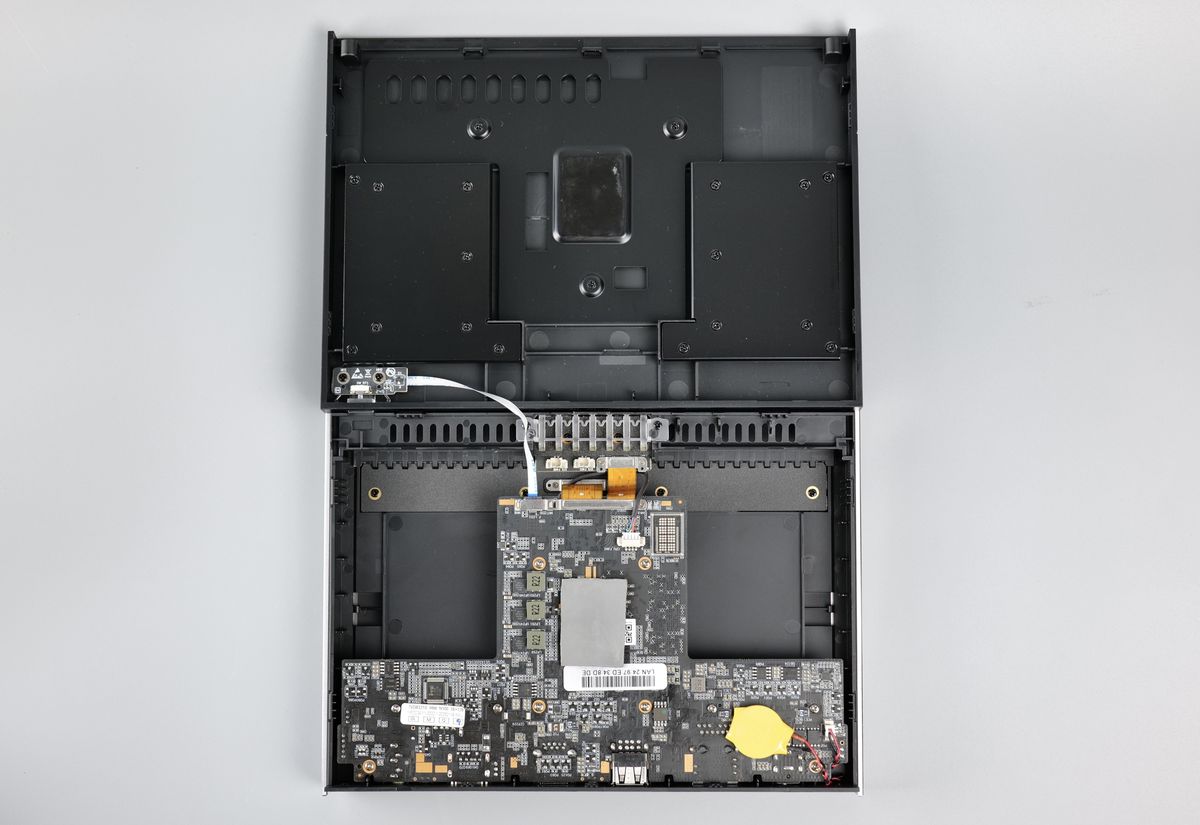
I was interested to see how the LincStation N2 board and cooling setup looks like, so I removed the top cover to take a look. With the top cover off, the main board is revealed, showing a hidden metallic plate which helps guide the 2.5-inch drives while also providing additional passive cooling for the CPU.
The gray thermal pad is taking some of the heat from the back side of the board, and dissipates it through the large metallic shield.
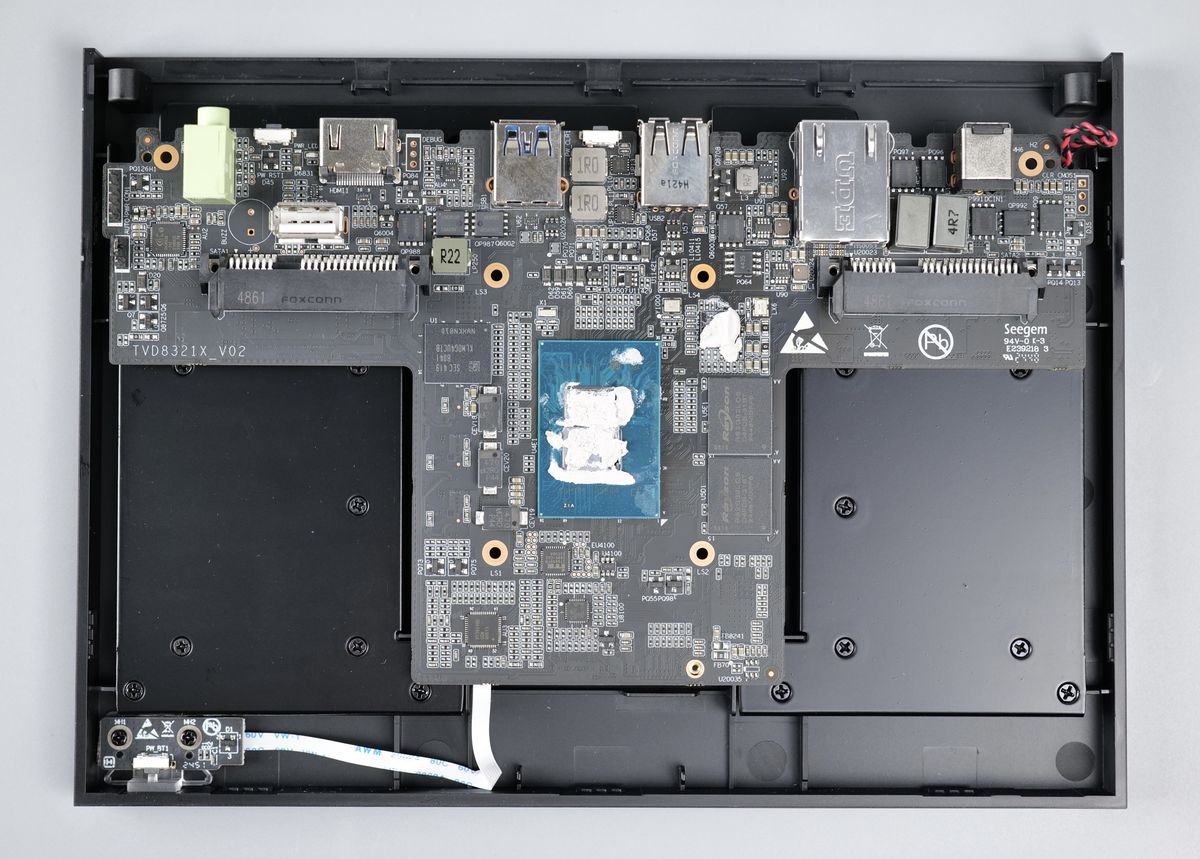
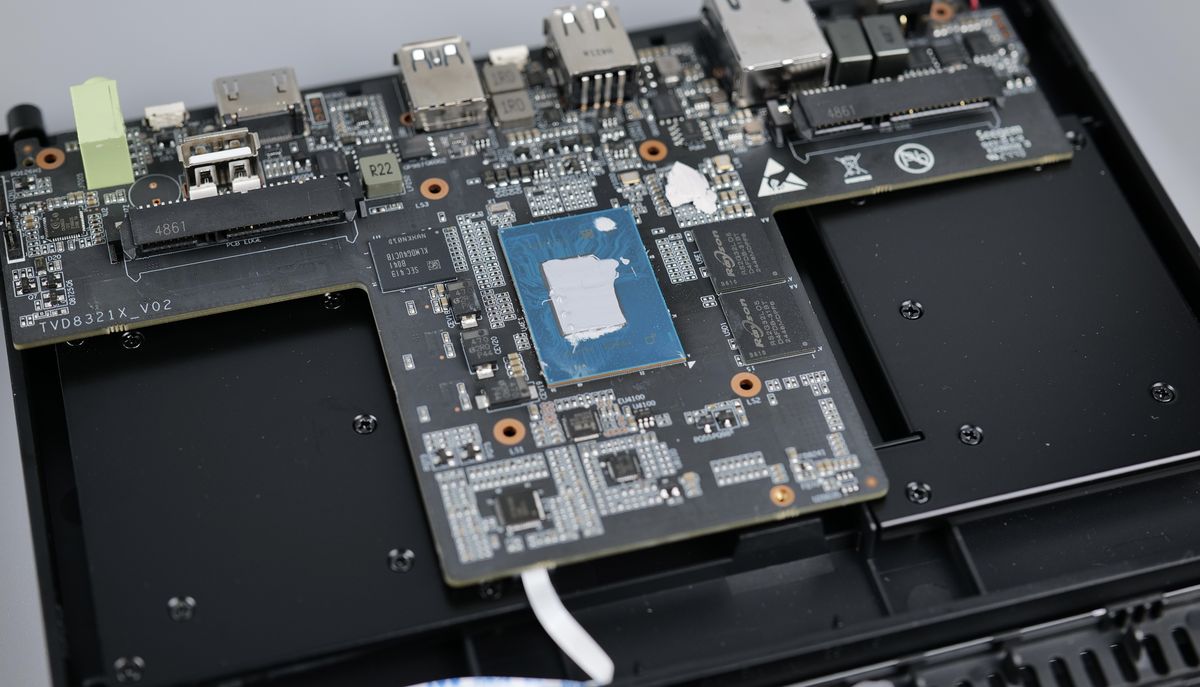
Once the main board is removed, we can see the tightly packed components and the N100 CPU in the middle, covered by thermal compound. It’s not a regular thermal grease, but a soft thermal adhesive that fills the gap between the CPU and the heatsink. We’ll talk about this a bit later.
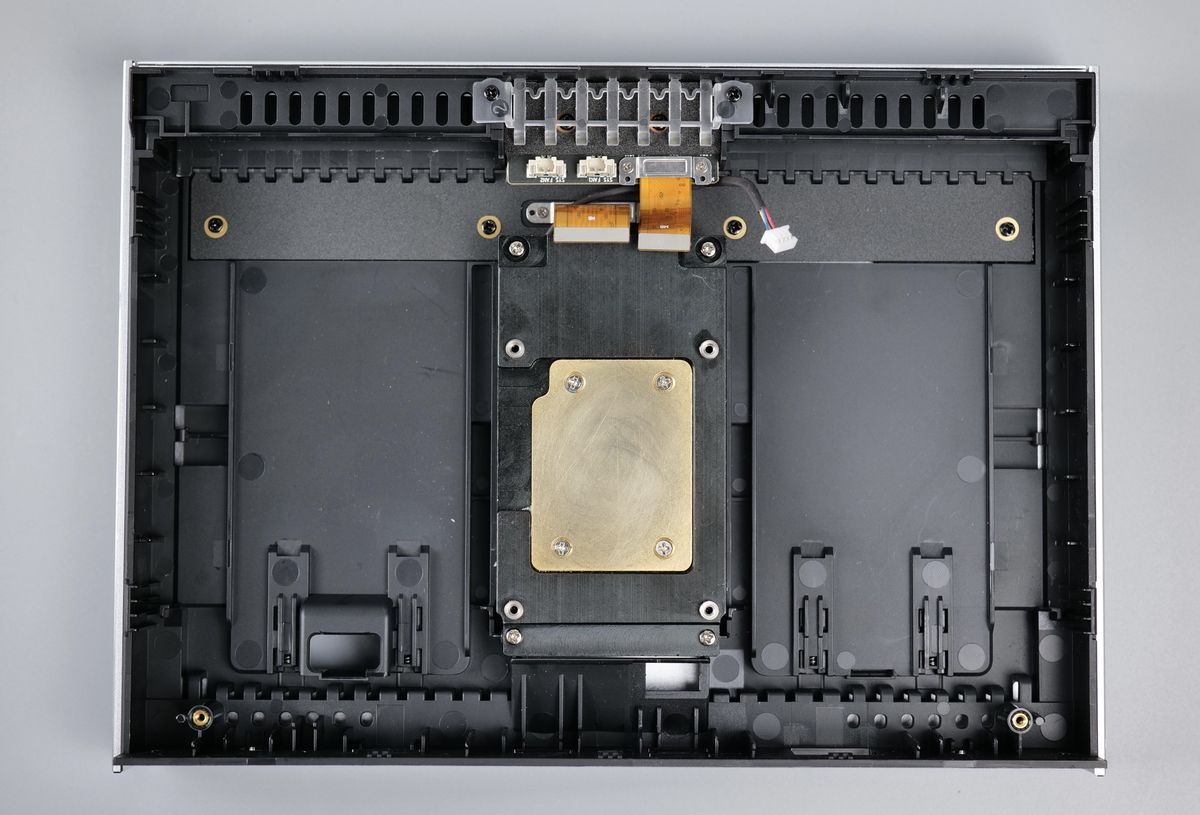
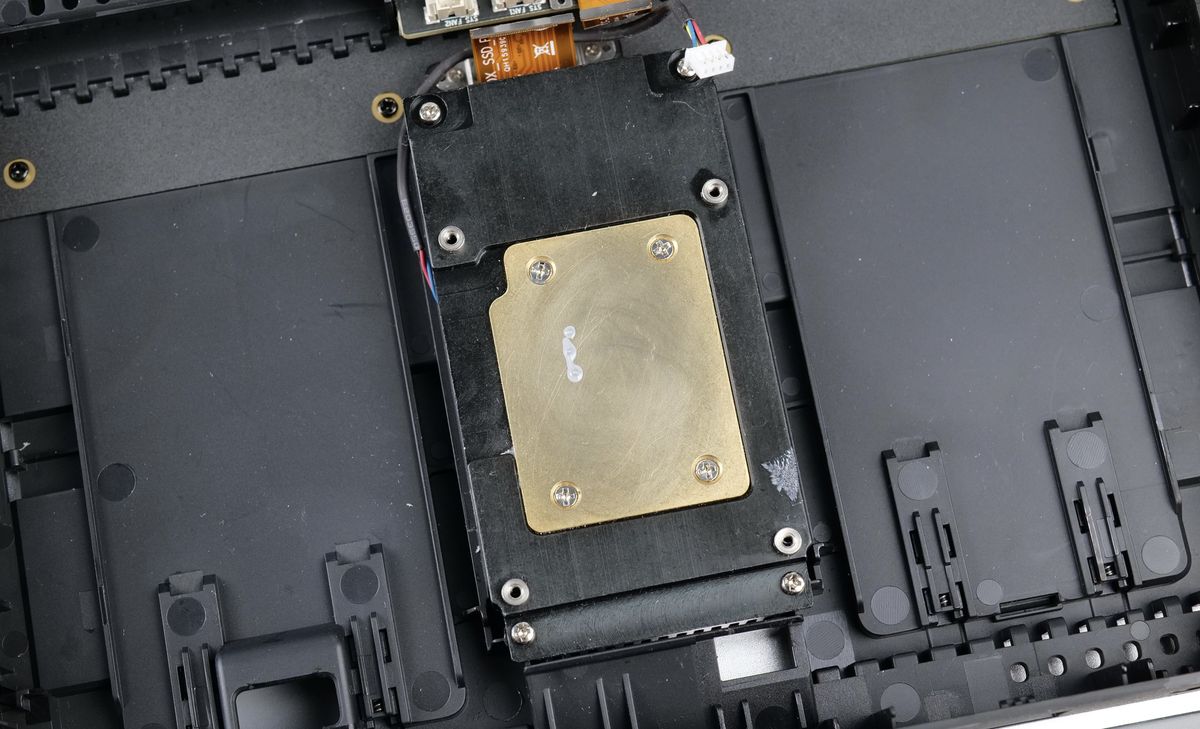
The bottom side of the unit has the heatsink assembly, held in place with four screws. In the top side, you can see the breakout board that connects the NVME drives to the mainboard through a pair of ribbon cables.
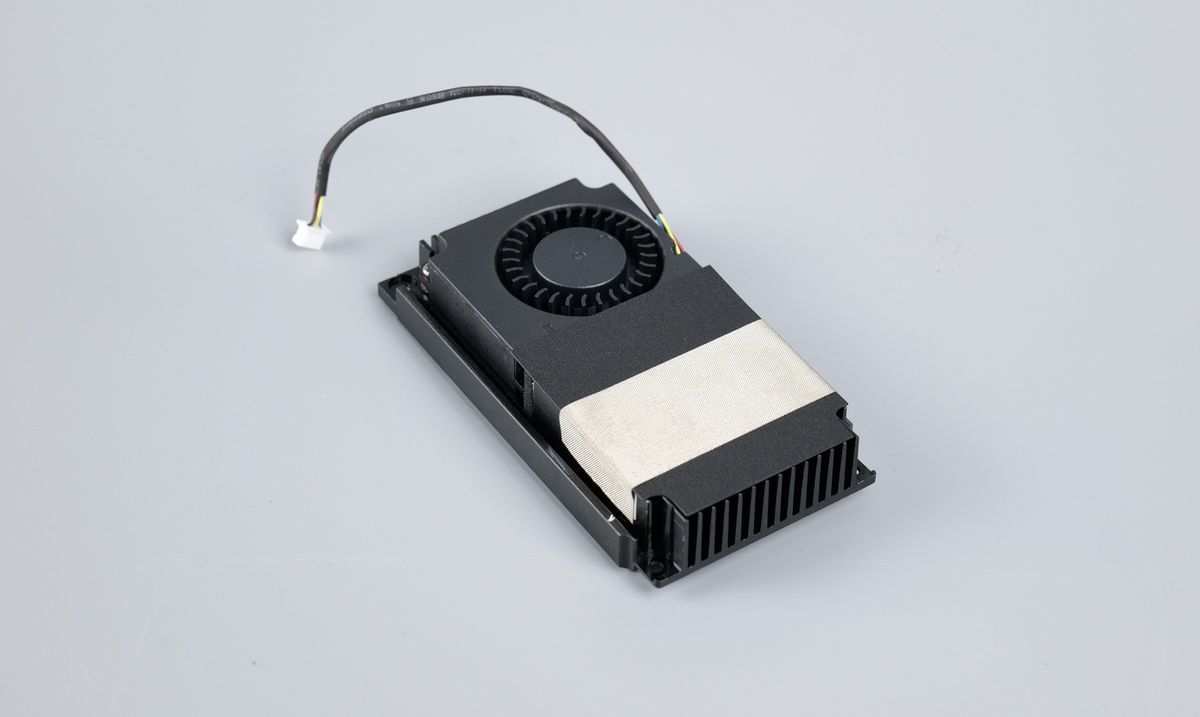
The heatsink looks pretty beefy considering the size of the overall unit, with a side-mounted fan blowing air through the aluminium fins.
Unfortunately, I feel like this heatsink can’t do its job to the highest performance due to the space between the CPU and the heatsink. I wanted to check how would the temperatures be if regular thermal paste was used, but when I tried it, I was a bit surprised to see that the CPU can’t touch the heatsink after being installed and the screws tightened correctly.
In the images below, you can see that the thermal paste barely touched the heatsink, which shows that there’s quite a bit of thermal transfer loss due the thickness of the thermal compound used. Having a direct contact to the base of the heatsink should provide a better thermal transfer and performance for the CPU but this cannot be achieved without using a copper shim to fill the space between them and provide better thermal conductivity.
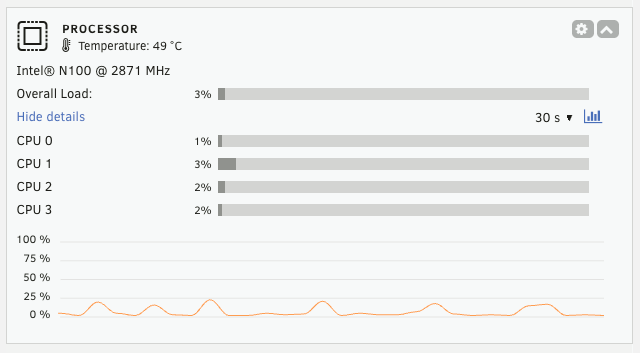
When the unit is idle, the CPU sits at around 50C with a 25C environmental temperature.
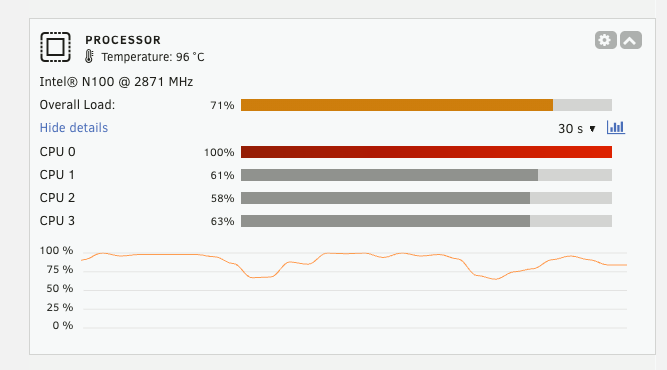
Once a bit more sustained load is added, the CPU quickly jumps to over 95C, dropping again once the load stops.
This discovery has been shared with the LincStation team and they are working on improving this.
I also took some thermal shots of the N2, to better show how the heat is concentrated during use.
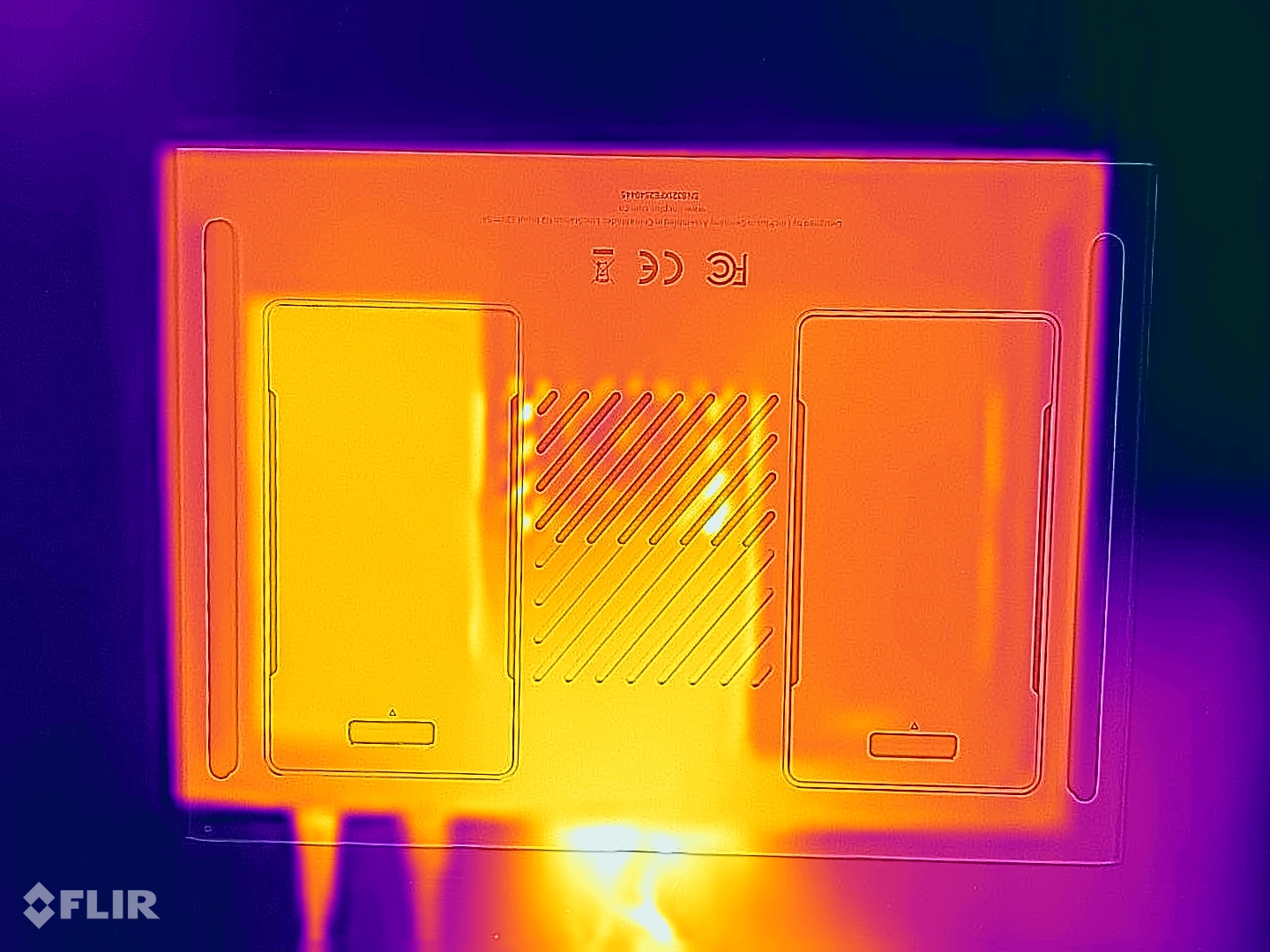
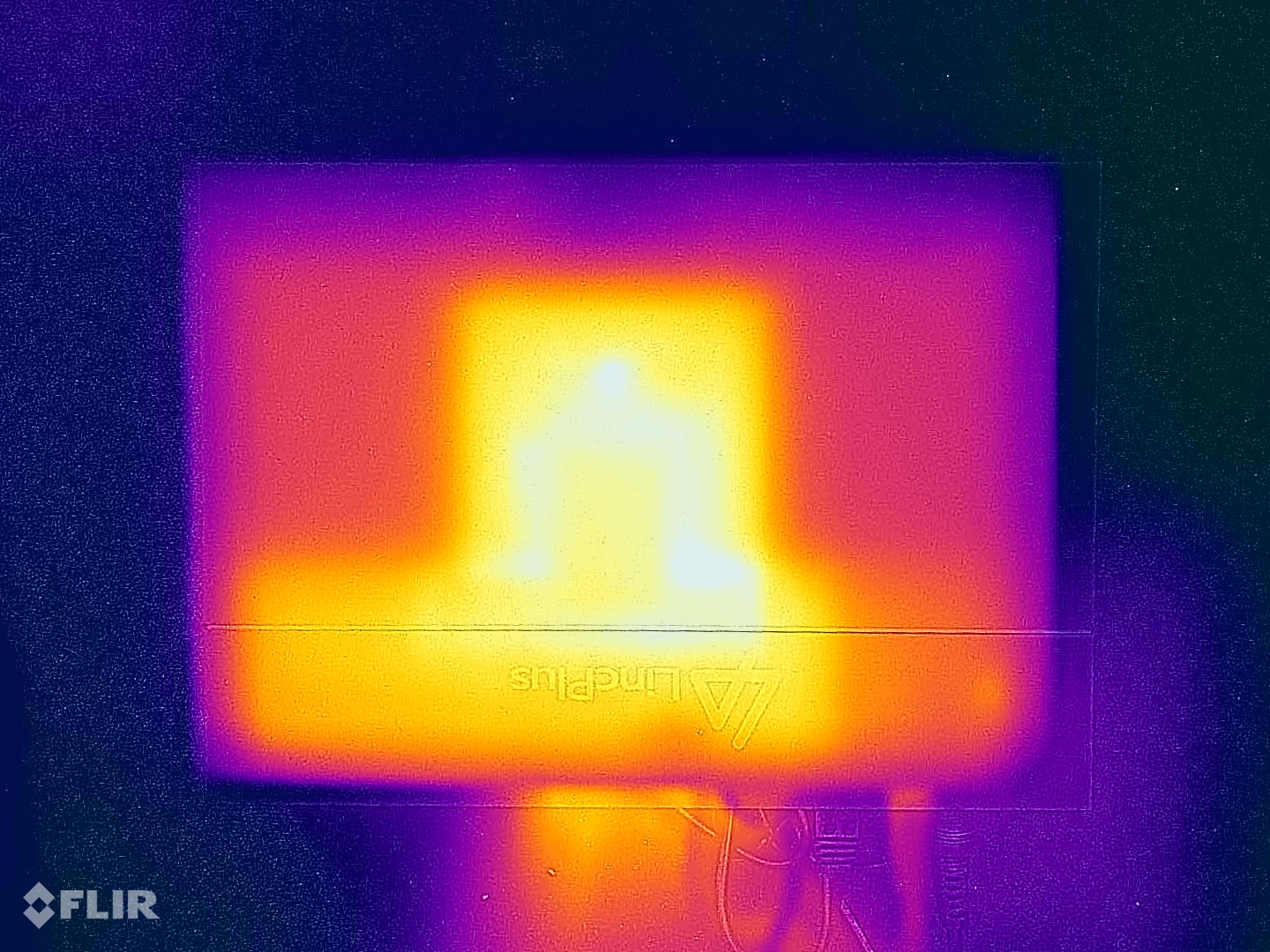
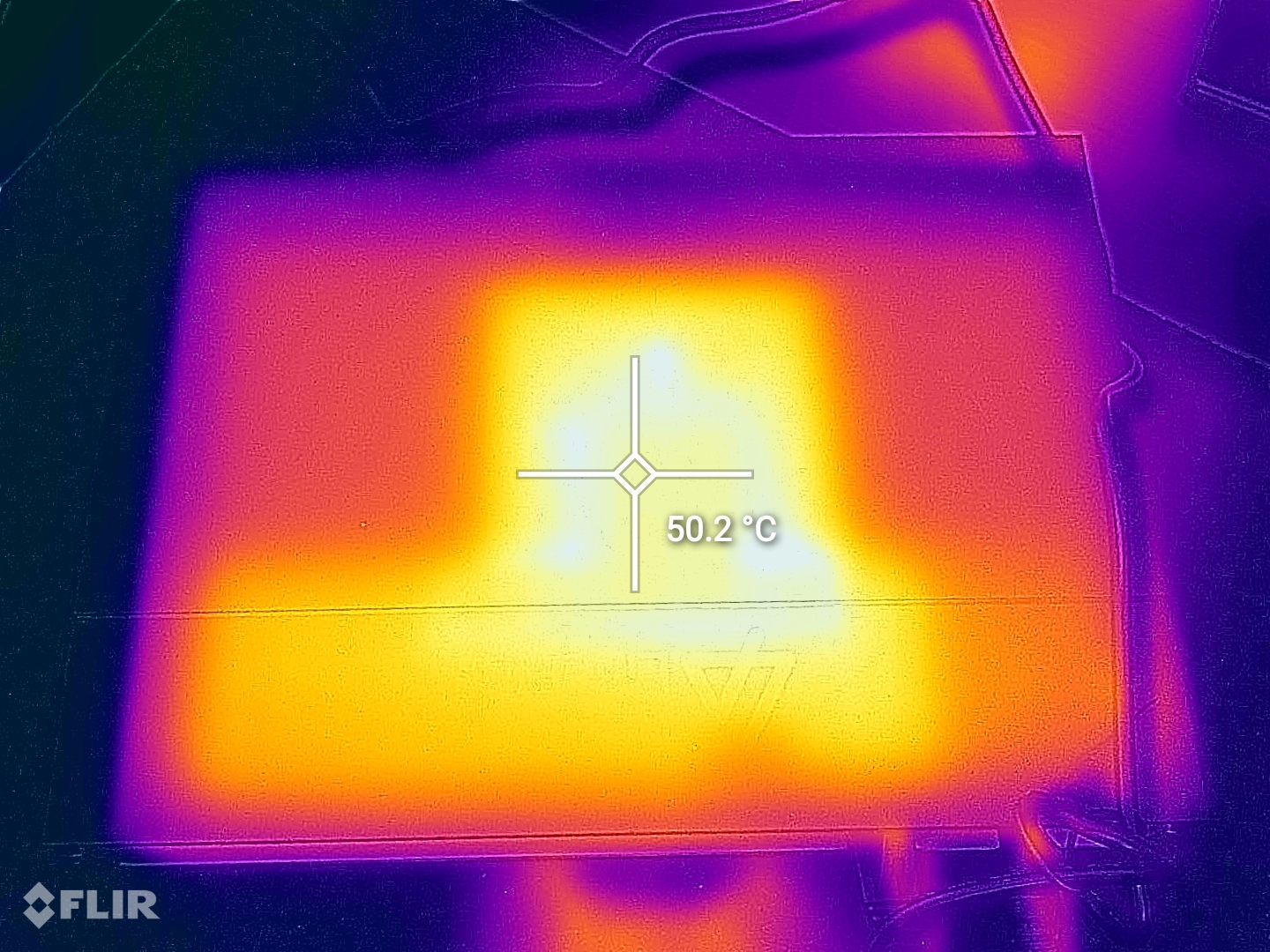
It can be seen that the NVME drives are sinking the heat in the back metal plate, and how the heat is mostly concentrated in the middle section, where the fan and heatsink is located. The top section of the unit reaches about 50C after 24 hours of use, at a 25C environmental temperature.
Power Supply
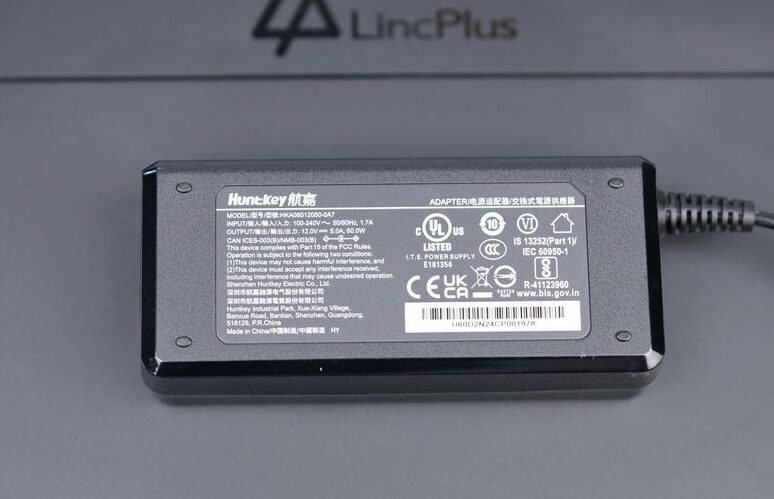
Some users were expecting a USB power supply, but the N2 comes with a regular external 60W power supply with a barrel connector. This is not a big issue in my opinion, but having the option to power it from USB-C would have been nice.
Power Consumption
Thanks to the N100 CPU and the all-SSD configuration, the LincStation N2 is quite power efficient. With a very simple array containing 2x 2.5 Inch SSDs and 1x NVME drive the unit draws about 6W-7W when idle.
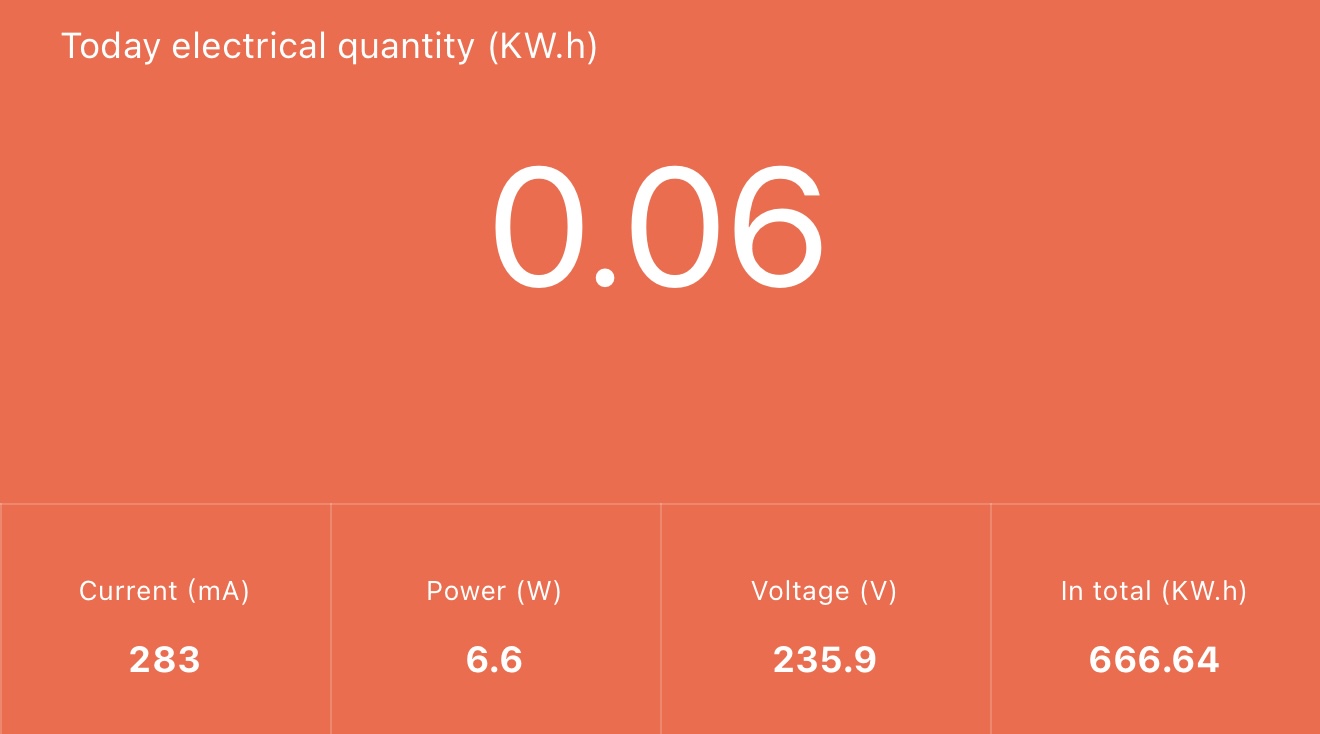
Under full load, starting a few virtual machines and running a few docker containers, the unit draws about 18W-20W.
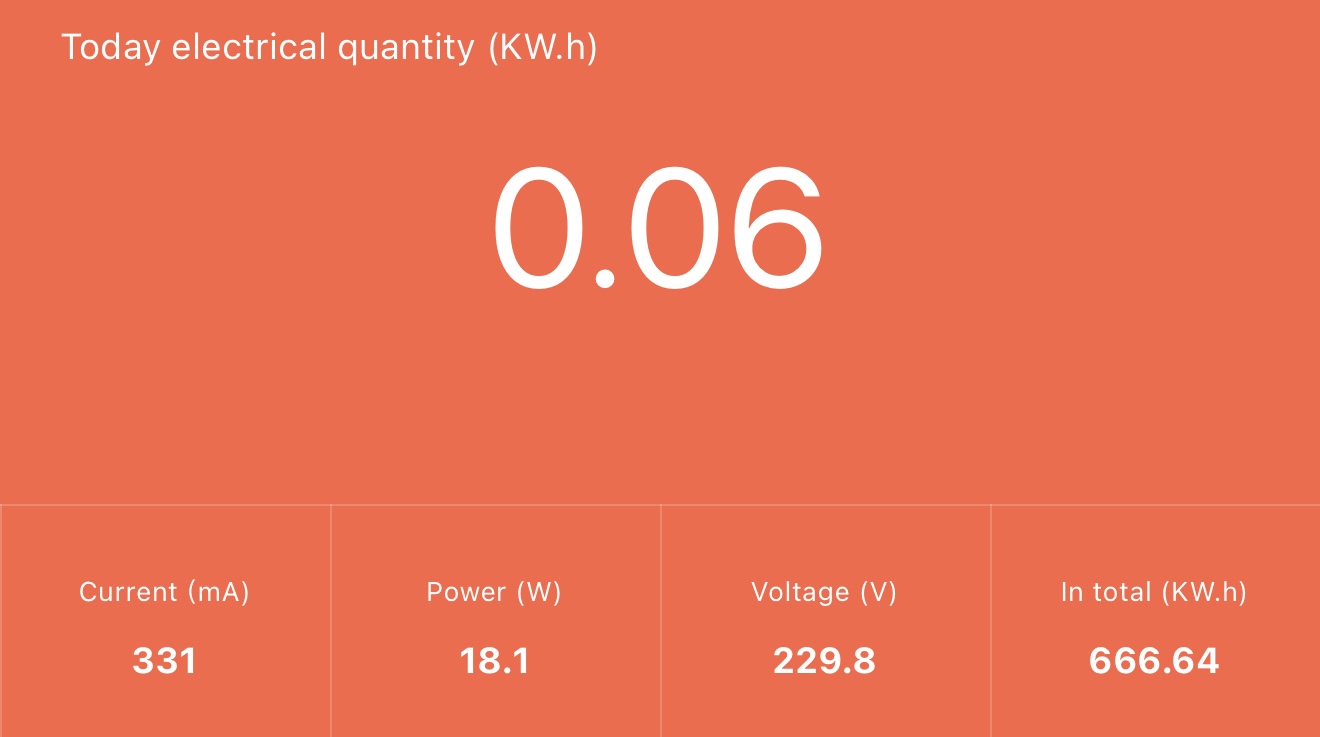
You can expect the unit to draw up to 25W-30W when fully loaded with SSDs which I think it’s more than acceptable.
LincStation N2 and Unraid
One of the main attractions marketed for the N2 is the inclusion and compatibility with Unraid, which if you don’t know about already is an operating system made specifically for NAS units.
Included in the box, you get a 1 year license of Unraid, which will allow you to get updates for the entire year after activation. Once the license runs out, you can continue to use the N2 with the latest operating system version available at that time, and if you wish, you can decide to renew the license.
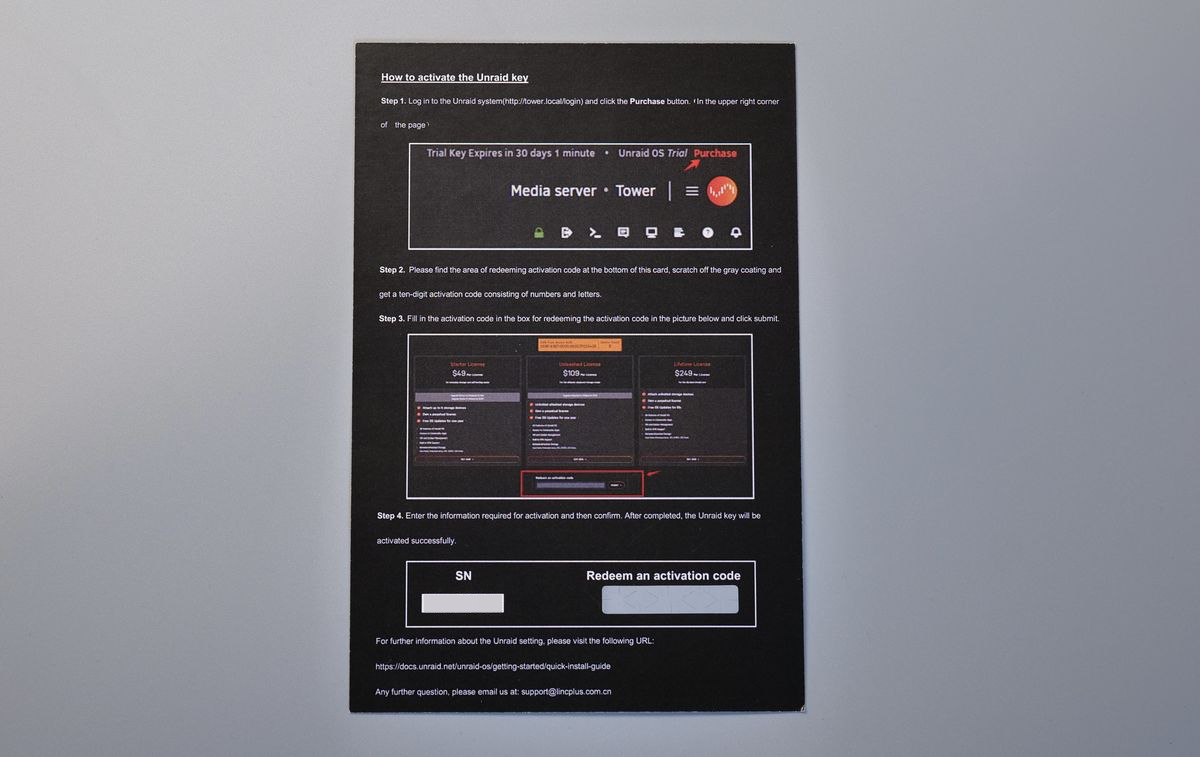
Depending on what are you looking for from a NAS, this can be a benefit or a drawback, because it probably increases the price of the unit a bit. But at the same time, you are also free to use any operating system you wish and install it on the 128GB ROM available.
Coming back to Unraid, I understand why it has become so popular lately as it is quite easy to set up and install any NAS software you might wish to host locally. In less than 30 minutes, I was able to update, configure it, install a few Docker containers from their app store and a virtual machine.
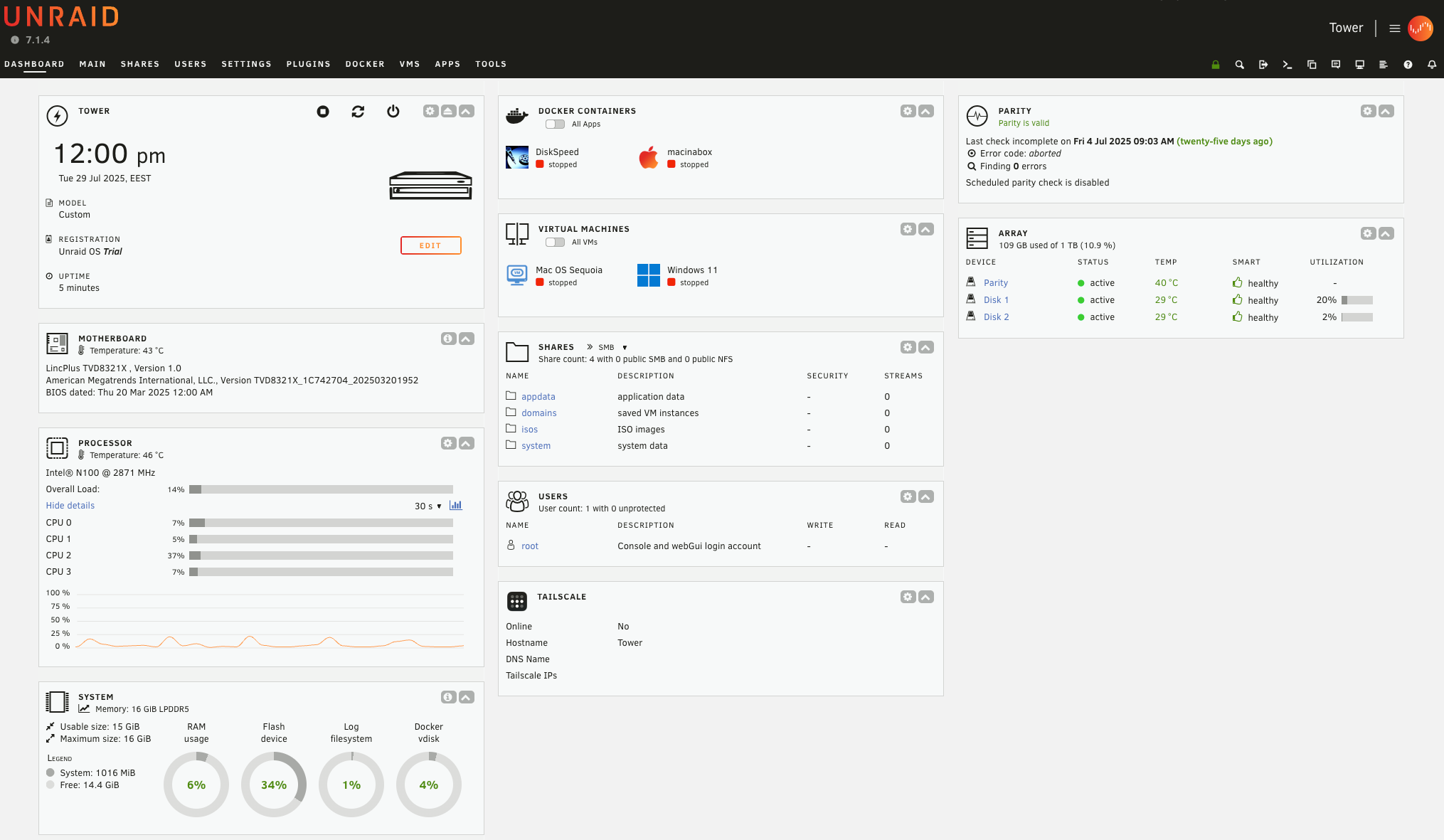
What I have expected is a bit more integration out of the box with Unraid. Maybe having the N2 being recognized by default (with the icon) and also have the LED controls to be part of Unraid, insted of a sepparate web port I need to access.
This is the additional interface available to the user, by going to port 50000
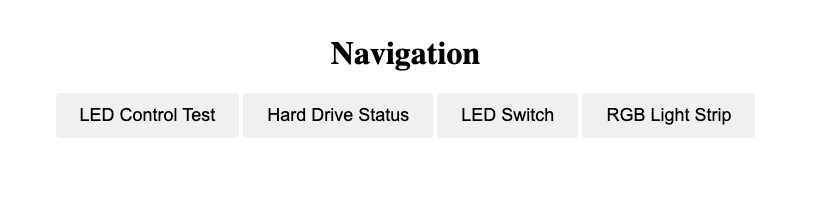
You can see in the images shared that the LED control interface is not very appealing, and during my testing, I turned off the LED lighs and could not turn them back on easily. Some work is required to improve this in the future.
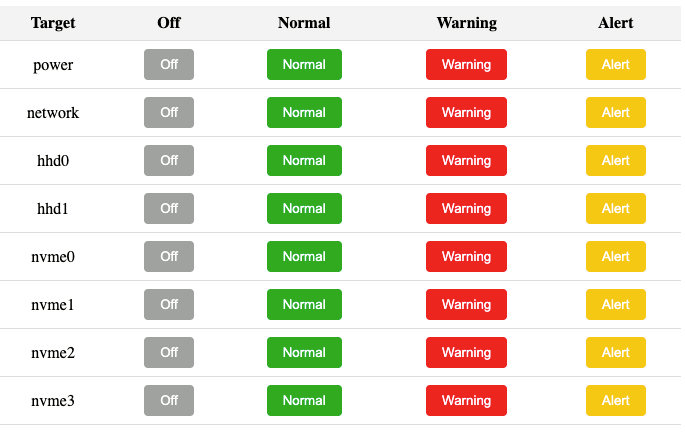
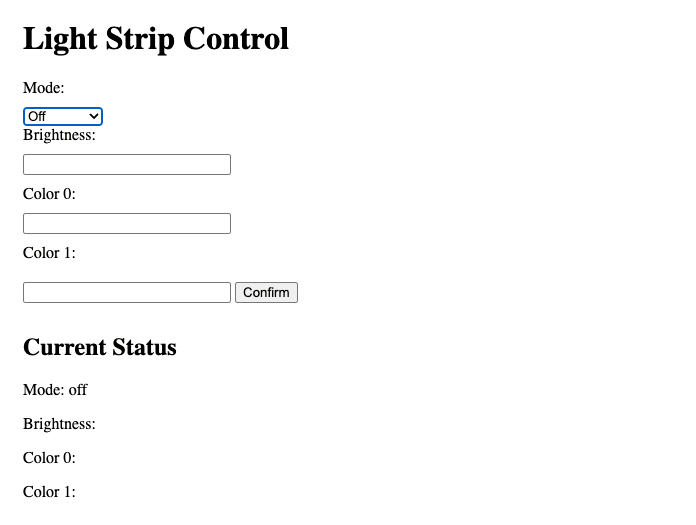
It’s also not a secured interface, meaning anyone with access to the network can access these controls – While not a huge issue, I still think it can be further improved.
LincStation N2 Noise Levels
The LincStation N2 is very silent after you set it up and it’s running, as most of the time the CPU stays idle and will not have any issues even with the less than ideal cooling system. But if you have some demanding applications that will keep the CPU under load, you will notice the cooling fan running.
I would compare it with a silent laptop fan. It’s not loud enough to make it annoying, but at the same time, if the thermal configuration would be build a bit better, cooling could be more efficient so that the fan turns on less often than it does now.
Conclusions: Is the LincStation N2 worth it?
If what you are looking for is a compact full-SSD NAS with 10Gbps networking, then the LincStation N2 should be a good option to consider. It barely takes any room and can be easily used under your Wi-Fi Router and forget about it.
But at the same time, I would suggest considering what you plan to run on it, and how often it will be under intensive load that might heat up the N100 CPU and make it turn on the cooling fan and make it a bit louder than “dead silent”.
I would also like to have an option to purchase the LincStation N2 without an Unraid license. This could allow purchasing the unit for a slightly cheaper price, so that you can use any operating system if Unraid is not what you are looking for.
LincStation N2 Rating
Design and Build Quality
Specs and Features
Performance
Power Draw and Noise Levels
Price
The LincStation N2 is a very capable all-SSD NAS unit with an excellent design, low power draw and great build quality, held back by the less than ideal cooling capabilities.
Where to buy the LincStation N2
The LincStation N2 was provided free of charge by LincPlus for the purpose of this review. While the article includes affiliate links, all opinions are my own. Nobody reviewed the article before it was posted, following the Review Guidelines.
Liked it?
|
|